When I was trying to figure out which image to work on this month I started to flip through a book called The Artist’s Guide to GIMP – Creative Techniques for Photographers, Artists, and Designers by Michael J. Hammel (O’Reilly, Amazon). I found myself putting post-its on several pages. There were so many interesting things I didn’t know how to do that I wanted to learn. Slowly I started putting together an idea of how this month might go in terms of which photo I could use and which four versions I could come up with using the seeds of ideas from this book.
Last week I actually was trying out the Foreground Selection tool but ended up using the Paths tool instead. Last week I ended up learning all kinds of things out of necessity, not necessarily from the book. But I had an end result in mind so that I could do some of the other things I found interesting from the book.
Which brings us to this week’s edits… STEAM!

There is a Cloud filter that you can manipulate and make steam! I thought it was so neat that that is all I did to my image this week. Keep reading for the How-To at the end of this post.
Kind thoughts and comments are welcome!
I have joined a month-long photo post-processing challenge called One Four Challenge, hosted by Robyn at Captivate Me. “This challenge is about processing 1 image in 4 different ways over 4 weeks.” Every Monday Robyn posts a new version of her photo and challenges us to do the same each week.
How To Make Steam using GIMP
The main idea for this came from the book The Artist’s Guide to GIMP, then I added some extra filters to my version.
- Add a new layer using the
 tool, choose transparency…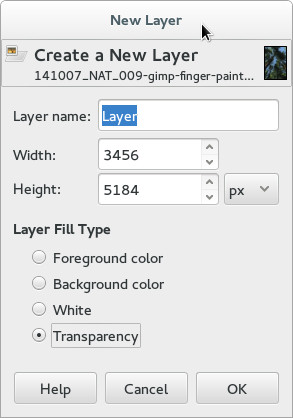
- Add a cloud filter by going to Filters->Render->Clouds->Solid Noise, choose Y: 1.0 and X: 4.0…
 Giving you this…
- Add a white mask to the cloud layer by going to Layer->Mask->Add Layer Mask, and choosing white…
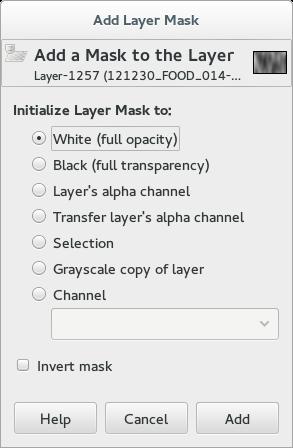 Then using the Gradient (Blend) tool
  , set the shape to Bi-linear and set the blend mode to Multiply…
 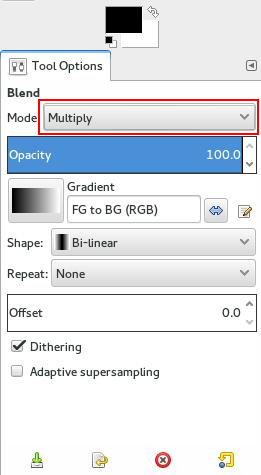 Making sure the Mask is selected, starting from the center and dragging to the right, create a gradient…
 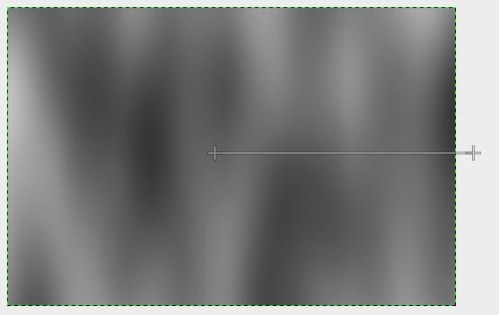 The mask will look something like this…
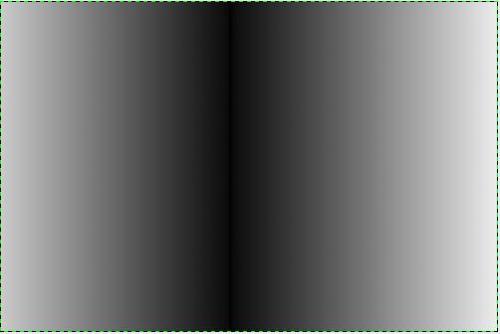 Drag again from the near right edge to the right edge…
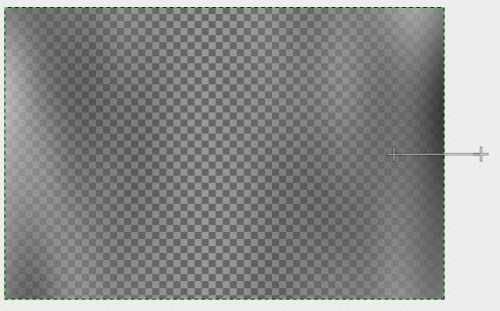 Changing the mask to something like this…
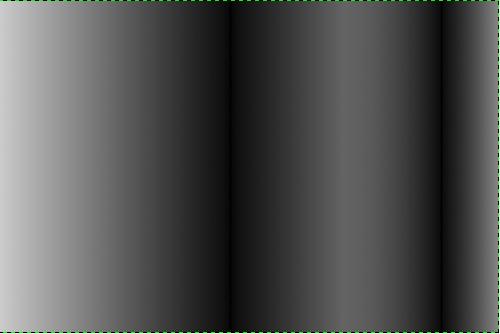 And one more time drag from the near left edge to the left edge…
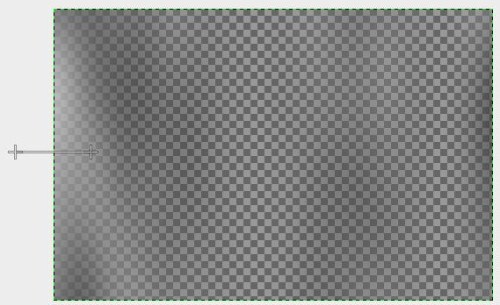 And your mask will look something like this…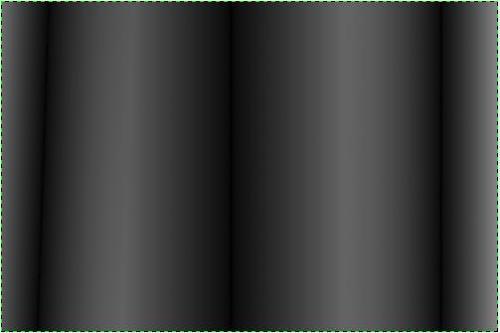
- Apply the layer mask by going to Layer->Mask->Apply Layer Mask (or by right clicking on your mask and choosing Apply Layer Mask). Then invert this layer Colors->Invert…
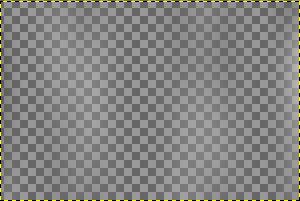
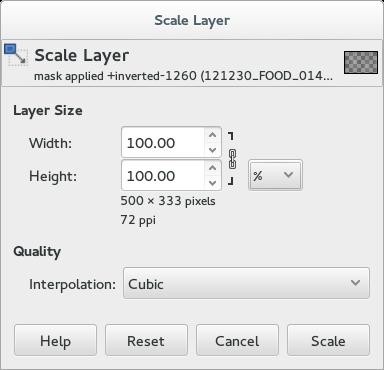
- OK, now we can start having some fun with this… First we need to scale this down to the size of our image’s steam by going to Layer->Scale Layer, I reduced mine to 50% and then increased it 20% more…
 Using the move
  tool, I placed the ‘steam’ over my mug…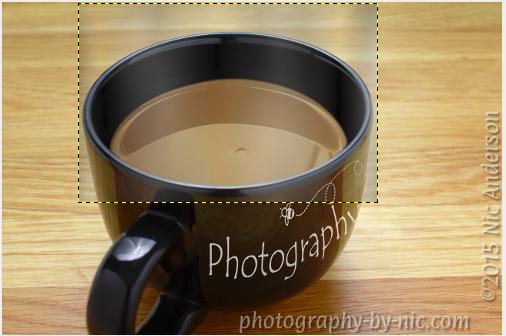
- The rest is all an artistic choice. There are several Distort filters (Filters->Distorts)…
 I played with Whirl and Pitch…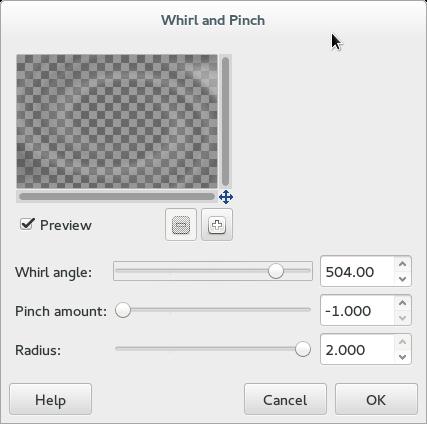
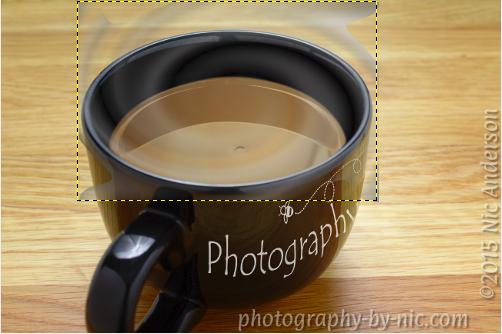 Then iWarp…
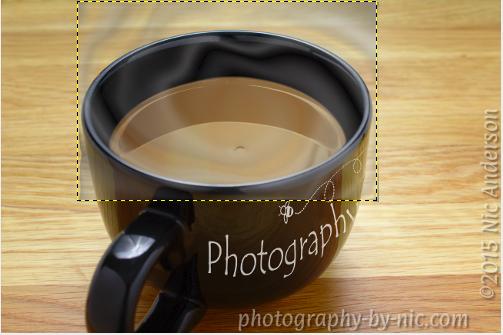 And then Erase Every Other Row…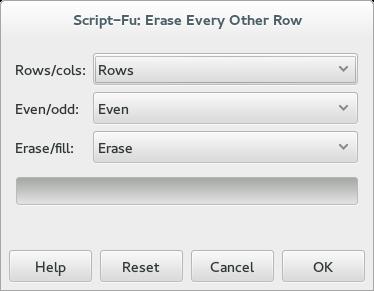
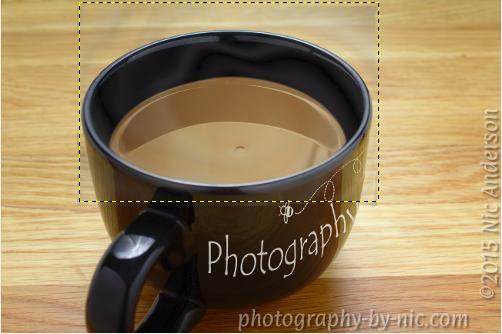
- Then once I was happy with my steam, I added a Black Mask by going to Layer->Mask->Add Layer Mask and selecting Black. Then using the Ellipse Selection
 tool I selected around the mug…
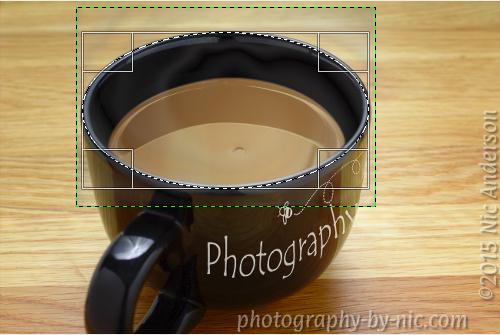 Making sure the mask is selected I filled the selection with White by going to Edit->Fill with BG Color…
 Shift-Ctrl-A will remove the marching ants of the selection…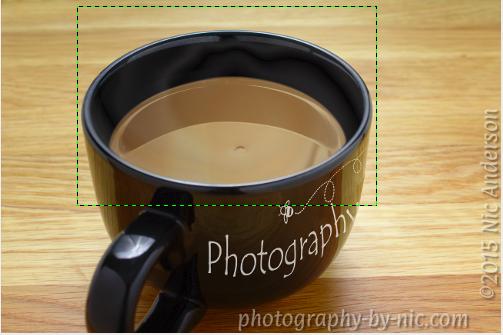
- Finally change the blend mode to Screen or Grain Merge (I chose Screen)…

- Voilà Steam…
I hope you learned something from today’s tutorial, please let me know if you tried any of it and how it went. 🙂
Until next time…
~nic
** Last week I made a tutorial in GIMP, but said that I did one edit in Photoshop that would require a separate tutorial, I have been super busy and then I got sick, so I haven’t had the opportunity to write that tutorial yet. I will try to write it this week, sorry for the delay. **
 Digital Art by Nic
I said it before, but I’ll say it again – I am so impressed by your GIMP skills. You make it look so easy, I really need to step up my game. But, I am so lazy. 😀
Thanks, Lore! I’ll admit that a lot of my skills were learned while I was in school and I am now applying that knowledge to GIMP. It is my hope that these skills can be taught to people who don’t have access to Photoshop, GIMP is available to everyone (and all platforms) and I want to show that you can use GIMP for many of the things you’d hope to do in Photoshop. 😀 A lot of the ‘wow’ stuff I do does take time, though, so that might be an issue.
Well I like it too Nic – great work!!
I love what youve done and that youre working with GIMP. So much you can do with it 😃😃
Love the steam – I wonder, is it possible to duplicate the steam layer, so its not quite so subtle for viewing. I do agree with you btw about it being subtle.
Great work as always and thanks for the step by step!! ☕️
Thanks, Robyn! There seems to be a consensus that it is too subtle… that said, I’ve tried your suggestion along with some other experiments and it just doesn’t seem to be working out – it looks too fake. I’m not sure what the deal is, but so far I’m not happy with the experiments. I could show my experiments and see what you all think, if you’d like.
Good to try these things for ourselves Nic – Im having a week like that myself. Share if you’re happy to – I know Im interested 😃
OK, I’ll see what I can put together.
No pressure Nic – remember, we can address things like these in our review month, if you want 😃
It was no problem, I created a quick poll with images of my experiments. Check it out here… http://photography-by-nic.com/2015/03/13/which-steam-version-do-you-like/
Oops… I think my comment got lost… so if you have already got it, delete! Subtle effect… it is not until I read your step by step process that I actually saw the steam. Interesting tutorial as usual, Nic.
Thanks, Chris! I didn’t get another comment so I guess it got lost. The effect is pretty subtle, but you know sometimes steam is subtle, I didn’t want to make it too obvious because I didn’t want it to look fake. 🙂 Like I told Ben, I’m going to add a slideshow with last week’s image, perhaps that will help.
For the life of me at first I couldn’t see the steam, I had to jump back to last weeks photo to compare. It could be my monitor as the steam effect it really subtle. I think it is a great idea and addition the image.
Thanks, Ben! Yes, it is subtle, but if I made it too overt then it would definitely look fake. I’ll add a slideshow with last week’s image, I forgot and ran out of time.